UX/UI Essentials: Prototyping & Client Mockups with Figma 2 Sections10 Lessons1 Quiz5 Hours
Lesson 1: The Figma Workspace and Free Account Setup
1. Introduction: Your New Design Studio
Figma is a cloud-based design tool. This means all your work is saved online, and you can collaborate with clients or developers in real-time, just like Google Docs. It is the best tool for creating high-quality website and mobile app designs.
This lesson ensures you have the correct workspace setup so you can start designing immediately.
2. Getting Started: Setting Up Your Free Account
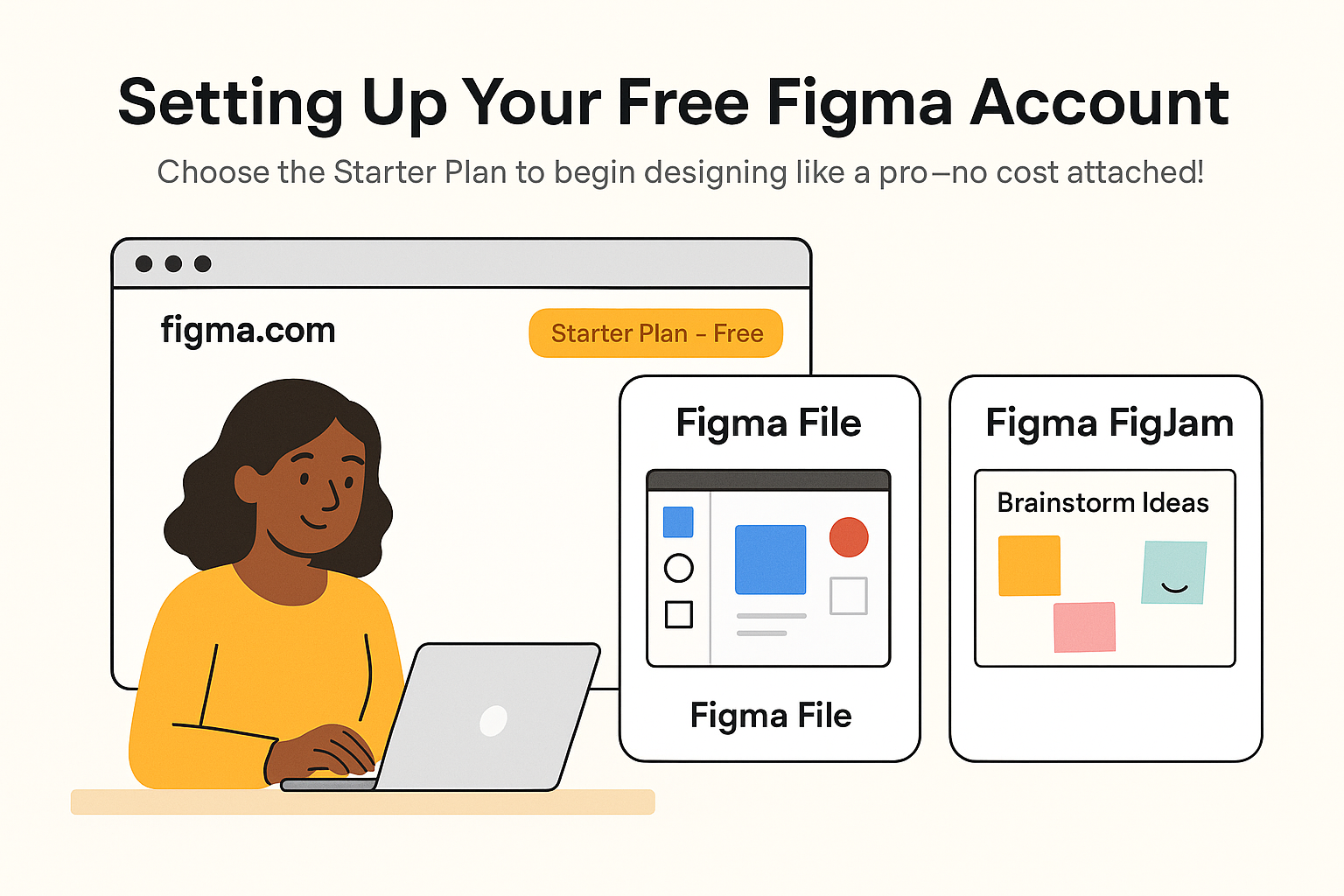
Go to figma.com and sign up for a Free Account (Starter Plan). This free plan provides everything you need to be a professional freelancer, including the ability to share files and collaborate.
- Figma File: This is where you do your design work (like a canvas).
- Figma FigJam: This is a separate tool for brainstorming and sticky notes (great for client meetings). Focus primarily on the Figma File.
3. Understanding the Core Interface
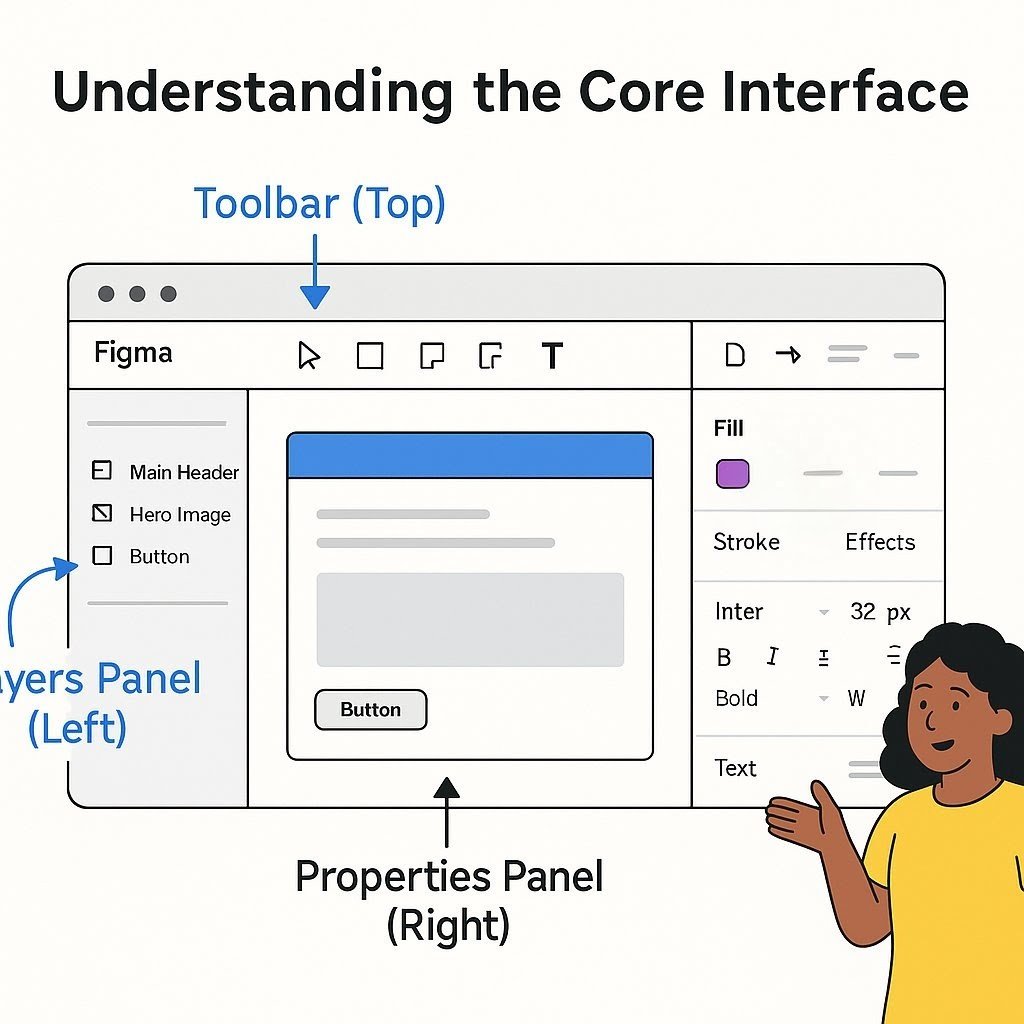
The Figma interface has three main areas you need to know:
- The Toolbar (Top): This is where you find your primary tools:
- Move Tool (V): Used to select and drag objects.
- Frame Tool (F): The most important tool. This is the canvas or screen you design on (e.g., a “Desktop” screen or an “iPhone 14” screen).
- Shape Tools: Used to draw rectangles, circles, etc.
- Text Tool (T): Used for all headings and body copy.
- The Layers Panel (Left Sidebar): This panel shows the organization of your design. Every shape, text box, and image is a separate Layer.
- Action Tip: Keep your layers clean and organized by naming them clearly (e.g., “Main Header,” “Product Image 1”).
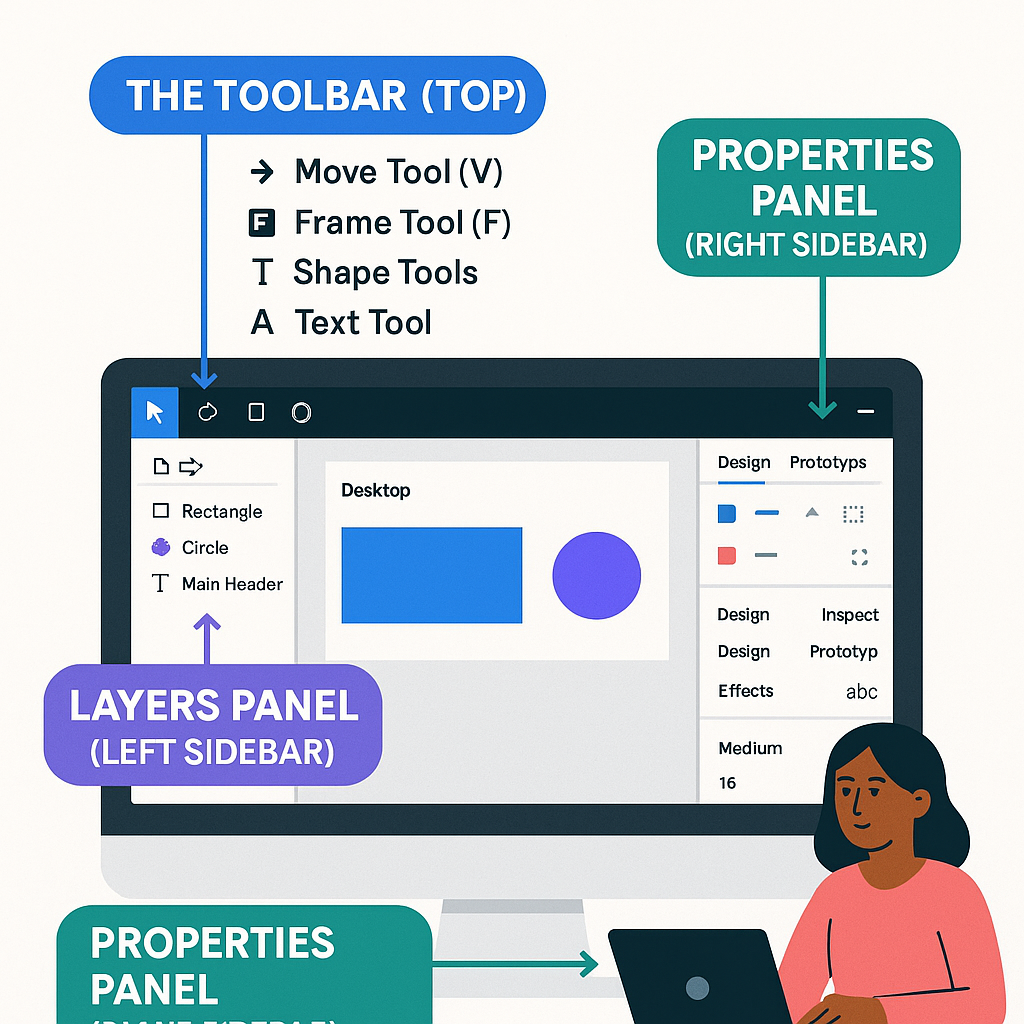
- The Properties Panel (Right Sidebar): This is your customization control center. When you select an object, this panel changes:
- Design Tab: Used to change colors, fonts, shadows, and add effects.
- Prototype Tab: Used in Lesson 6 to make your design clickable.
- Inspect Tab: Used by developers to grab the code specs from your design.
4. Frames, Groups, and Layers
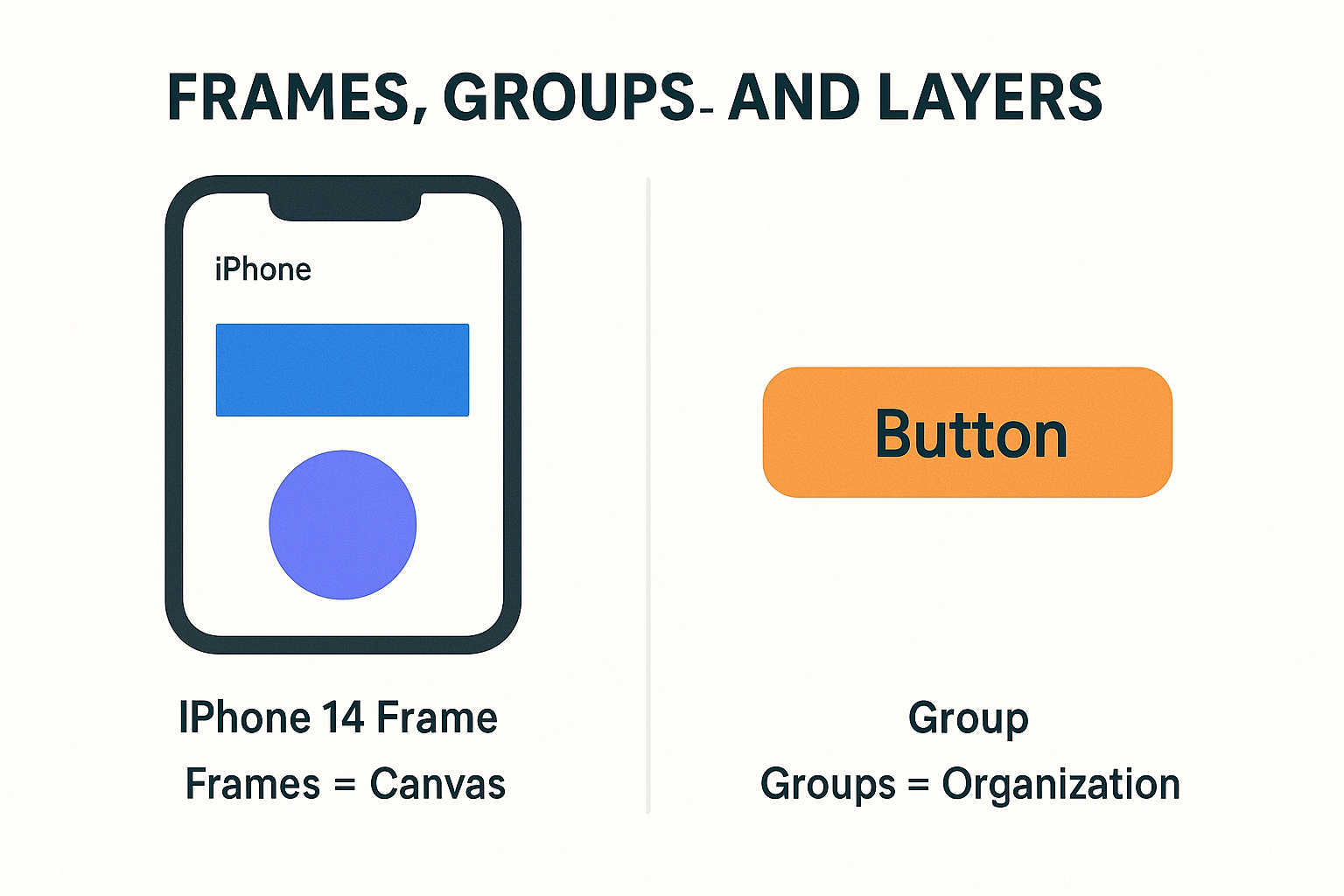
It is critical to understand the difference between a Frame and a Group:
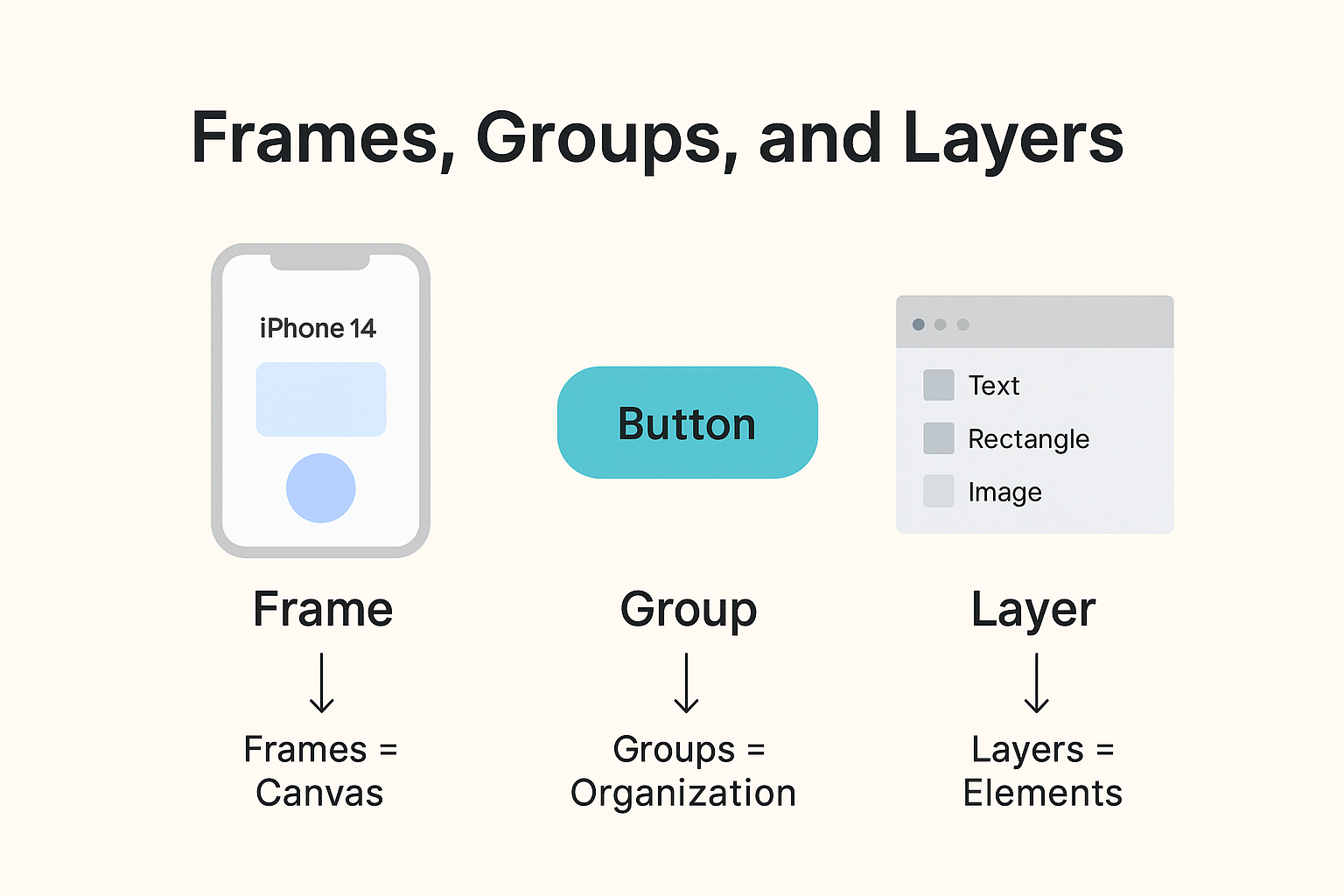
- Frame (Canvas): An actual screen size (like an iPhone or Desktop). Frames can contain other Frames and are essential for prototyping. Always use a Frame to start a new page.
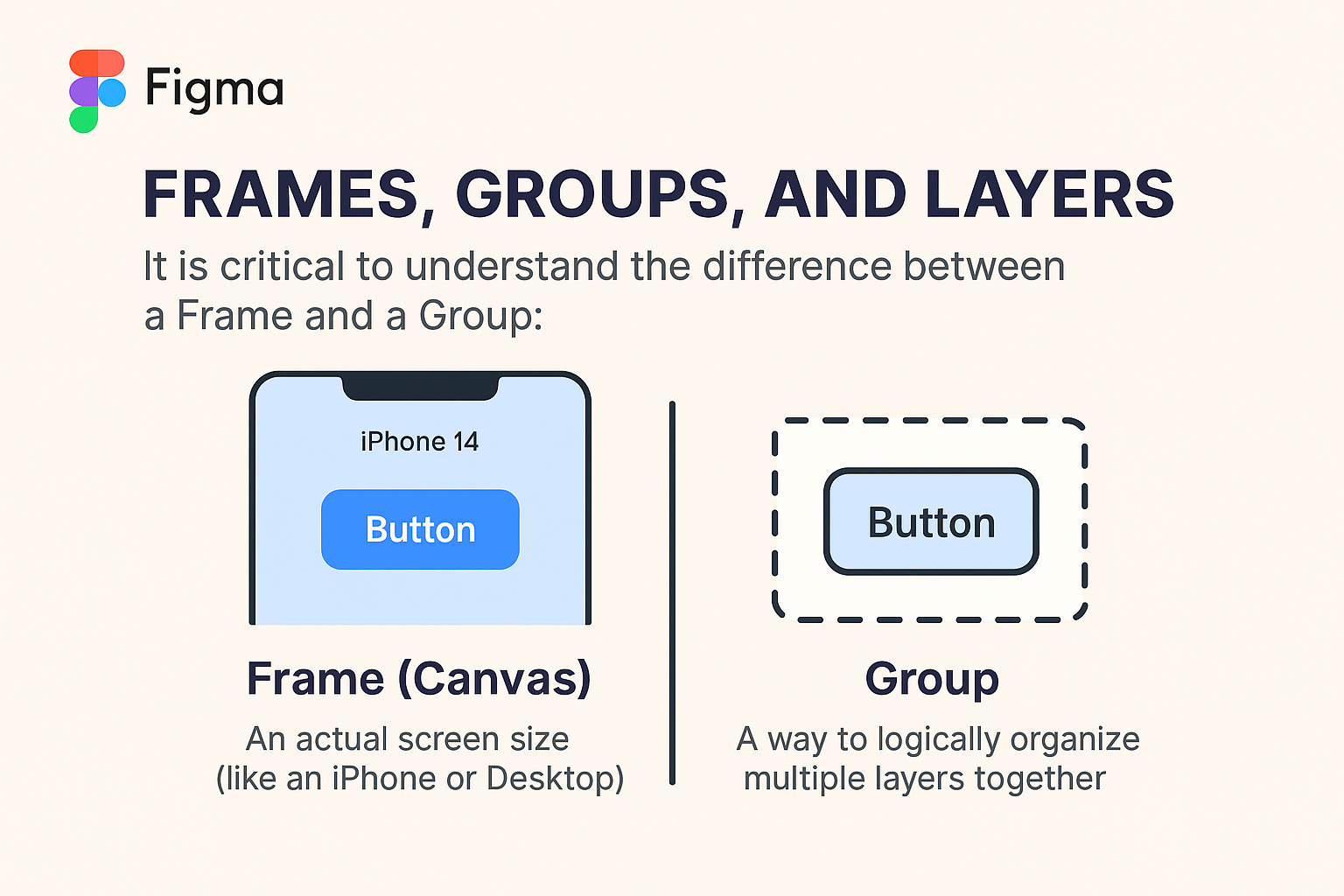
- Group: A way to logically organize multiple layers together (e.g., grouping a button’s text and its background rectangle). Groups cannot be used in Prototyping.